Welcome Guide
Request Initial Password
Here you can request the initial temporary password using the same personal email address you provided during registration.
After changing this initial password, you will not be able to retrieve it through this service.
If you have forgotten your password, please refer to the "How to Reset Your Password" section above.
Need Additional Help?
- • Make sure to check your spam/junk folder
- • Verify that the email address matches your registration
- • Contact support at it@dlh.lu if you continue to experience issues
How to sign in to Office 365 and to Microsoft Teams
-
Click on the “Sign in to Office 365” button in the email you received from it@dlh.lu.
Sign in to Office 365 -
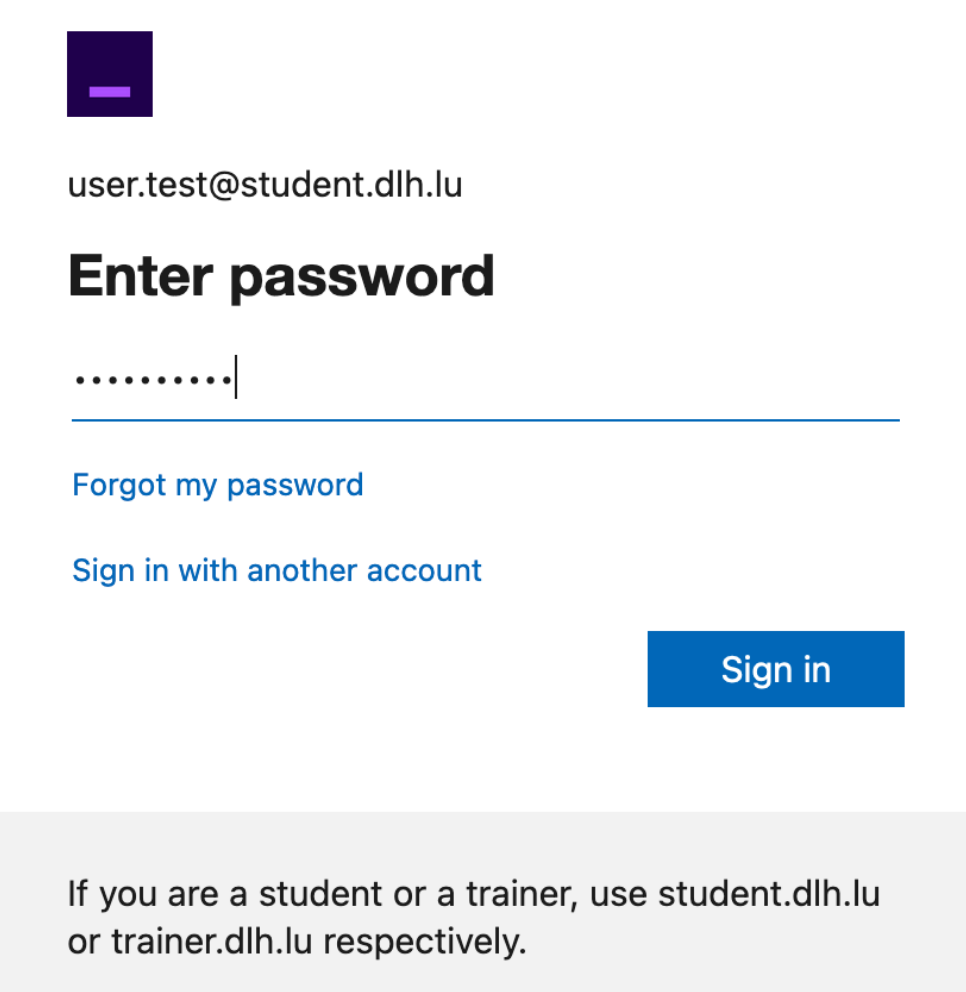
Enter your username and temporary password from the email.
Tip: Copy (Ctrl-C) and paste (Ctrl-V) the temporary password to avoid typing mistakes.
Click “Sign in”.
-
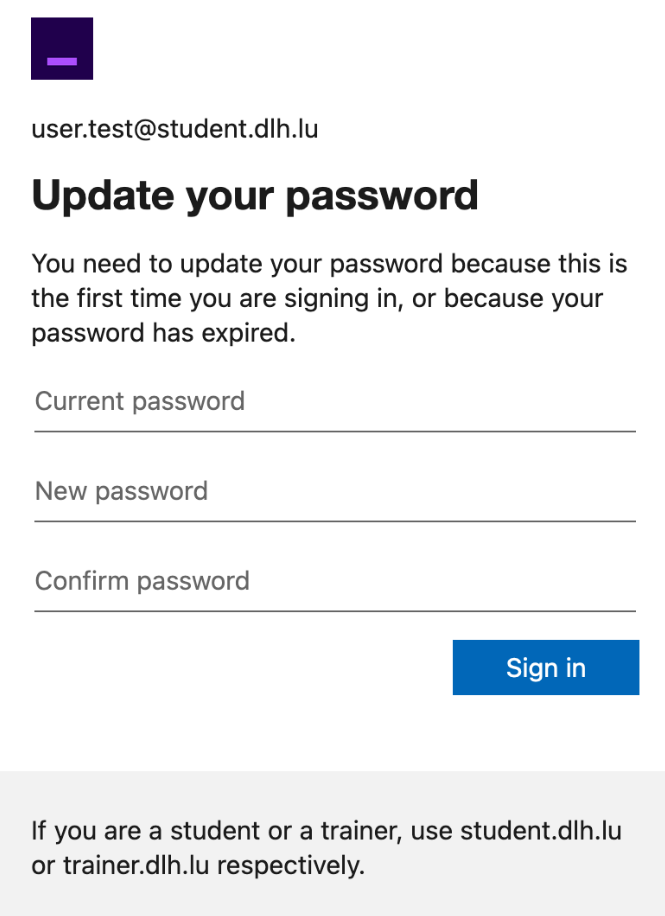
Now you are asked to change your temporary password.
Reenter your temporary password on the “Current password” field.
Enter your new personal password in the “New password” and “Confirm password” fields.
Click ‘Sign in’.
-
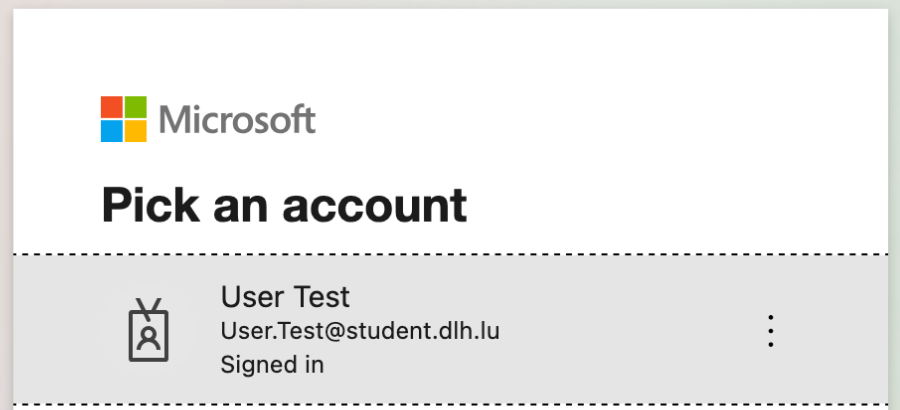
If prompted, select your @student.dlh.lu account.
-
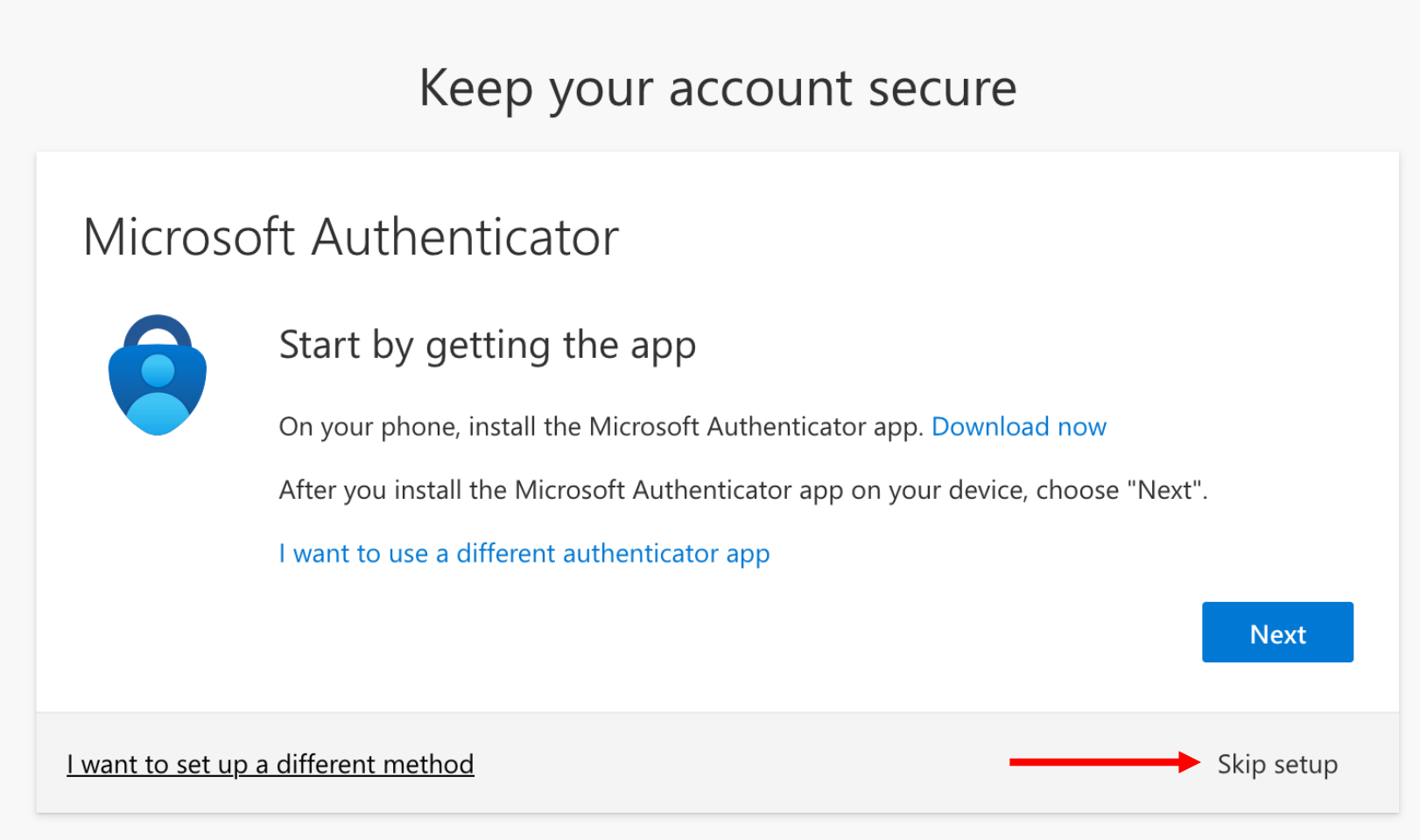
You will be prompted to set up multifactor authentication (MFA). While this step is optional, it is strongly recommended. To skip, click on “Skip setup”.
Microsoft suggests the Microsoft Authenticator app. Download and install the app, click “Next” and follow the instructions.
Alternatively, click on “I want to set up a different method” to choose an alternative MFA option such as email or SMS.
If you skip MFA, you may be prompted again in the future. It remains your choice whether to enable MFA later.
-
After completing MFA, you will be redirected to Microsoft Copilot.
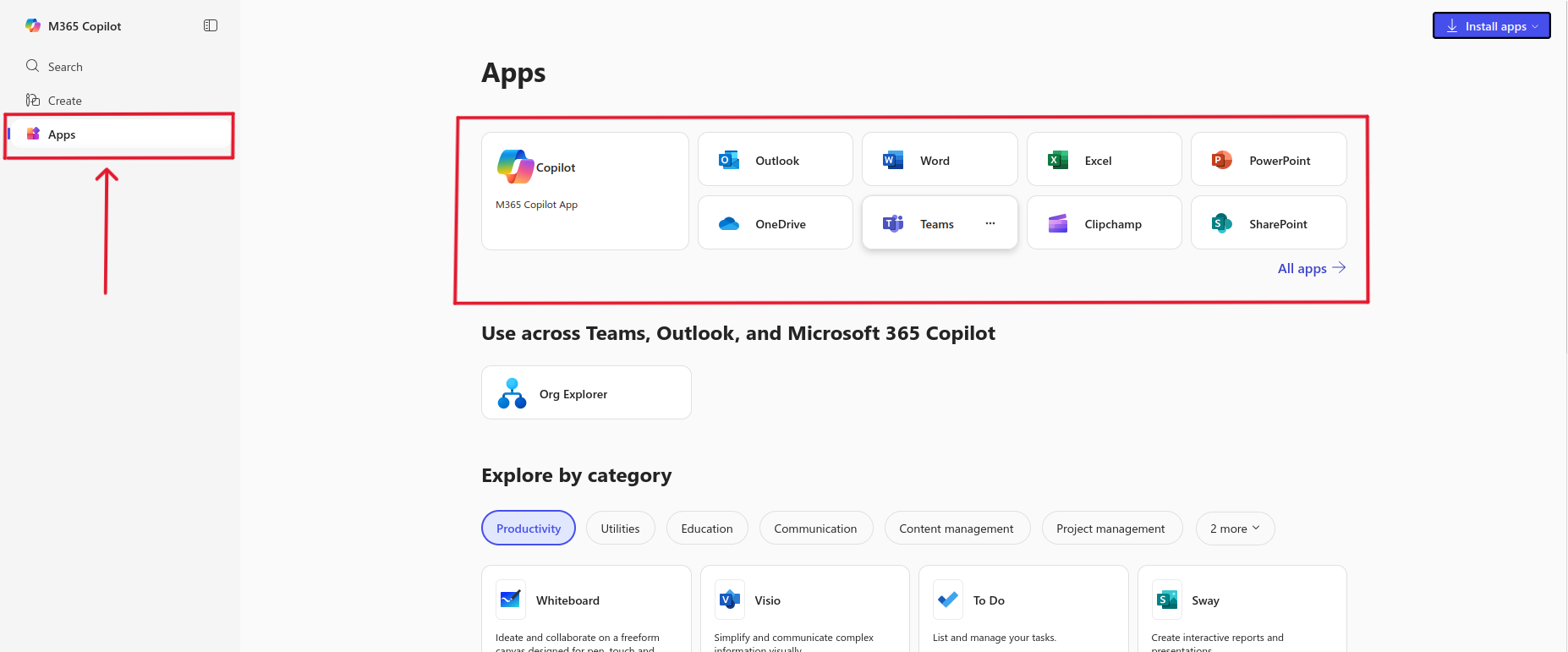
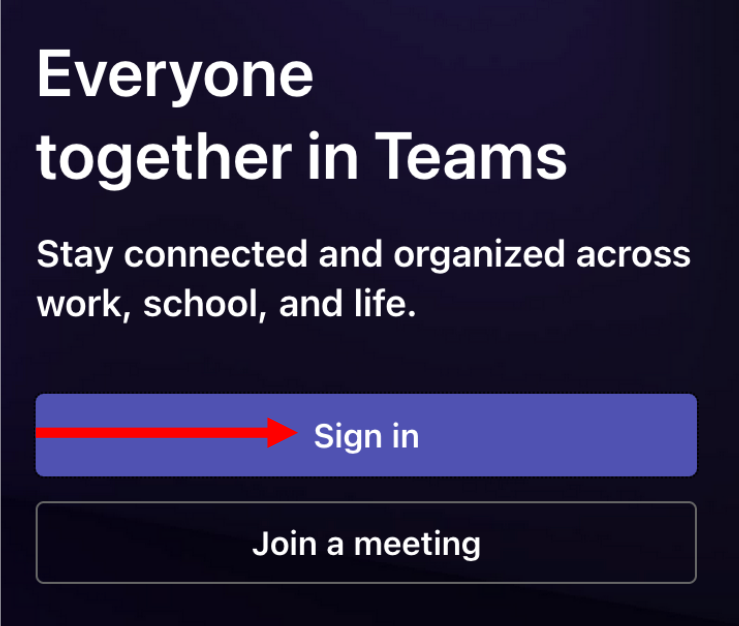
You need to click on “Apps” on the left sidebar and then select the “Teams” app from the catalogue. Alternatively, you can click on the button down below. Sign in with your DLH username and new password.
Access Teams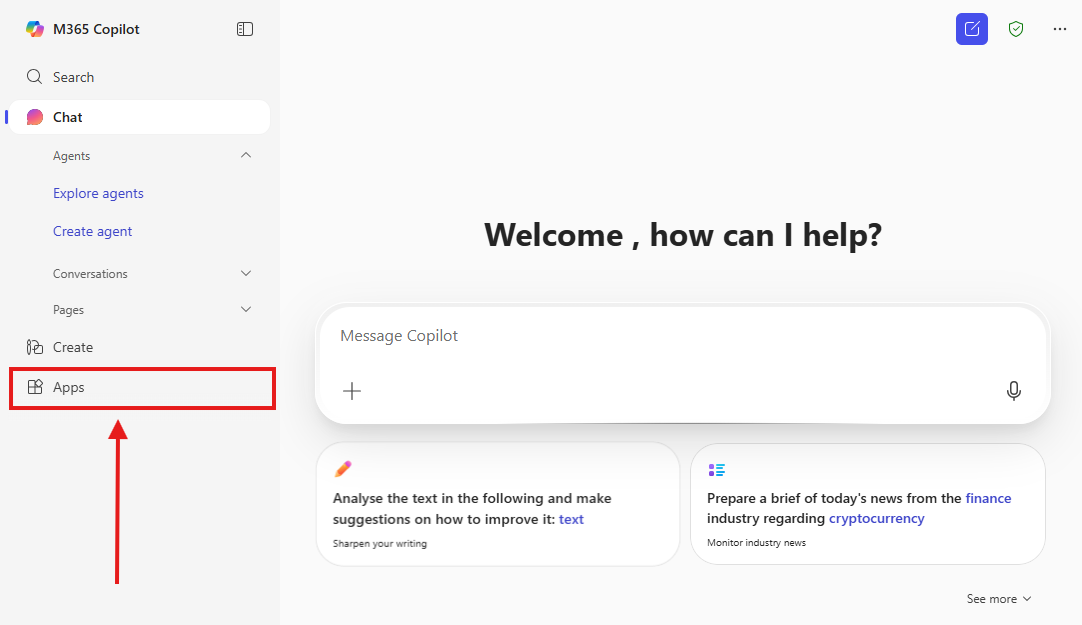
-
Go to the “Teams” tab to find your course-specific teams. Example: “#0000 TEST”.
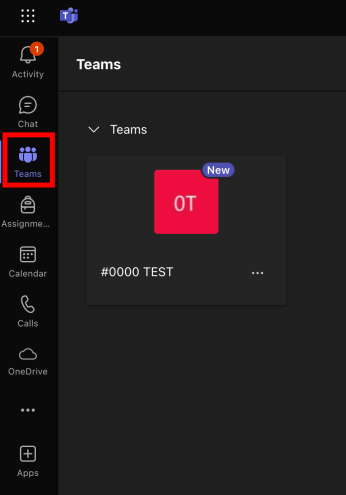
The Post-Tab: For any announcements related to the training.
The Files-Tab: For sharing course documents.
You have an additional 10-hour quota to use the VM outside scheduled times.
The VM shuts down after 59 minutes of inactivity. Save your work frequently.
How to access your Virtual Machine (VM)
-
Login in with your DLH Credentials at DLH Workspace
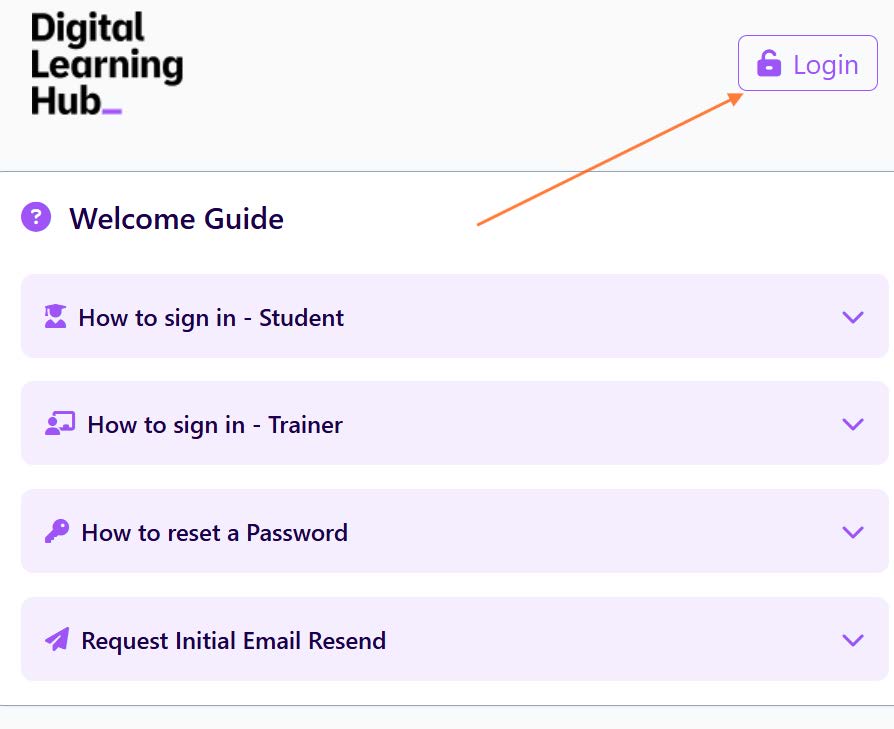
-
Once logged in, click on the "My Environment" button to access your virtual machines.
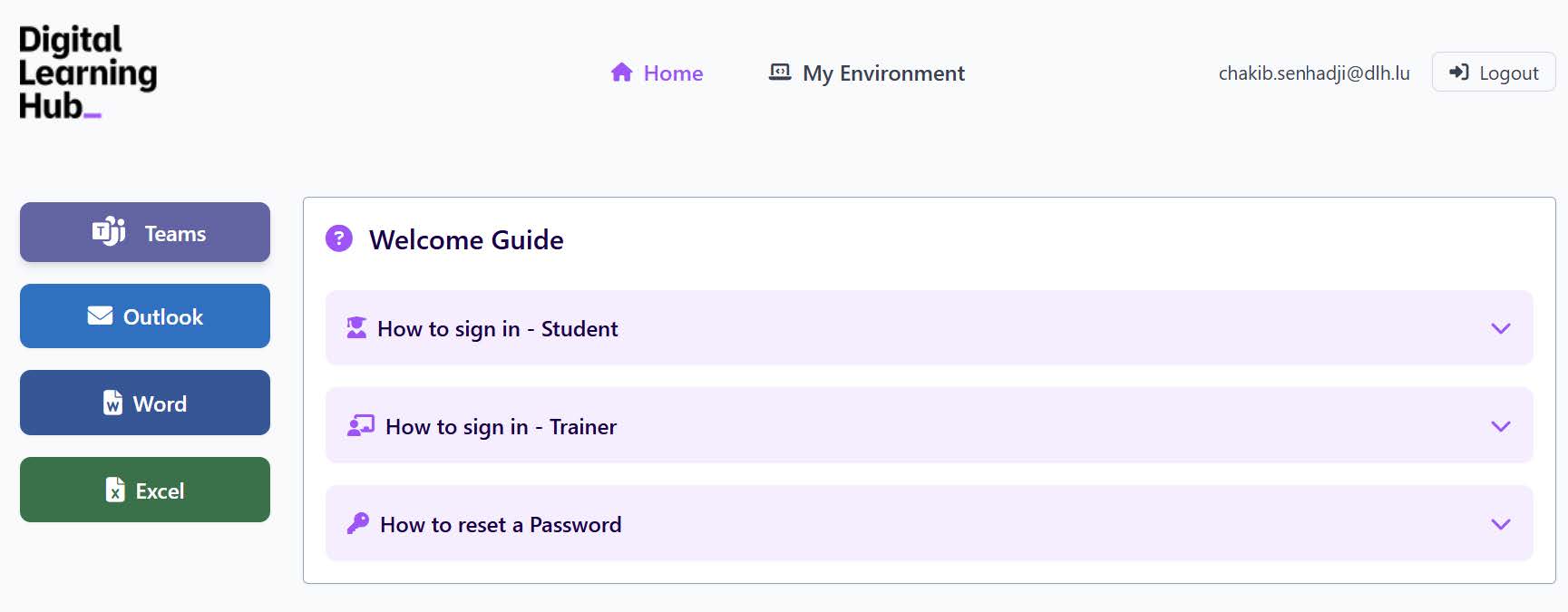
-
Now you see all the virtual machines assigned to you. Click on the "View in Azure" link of the VM you want to access.
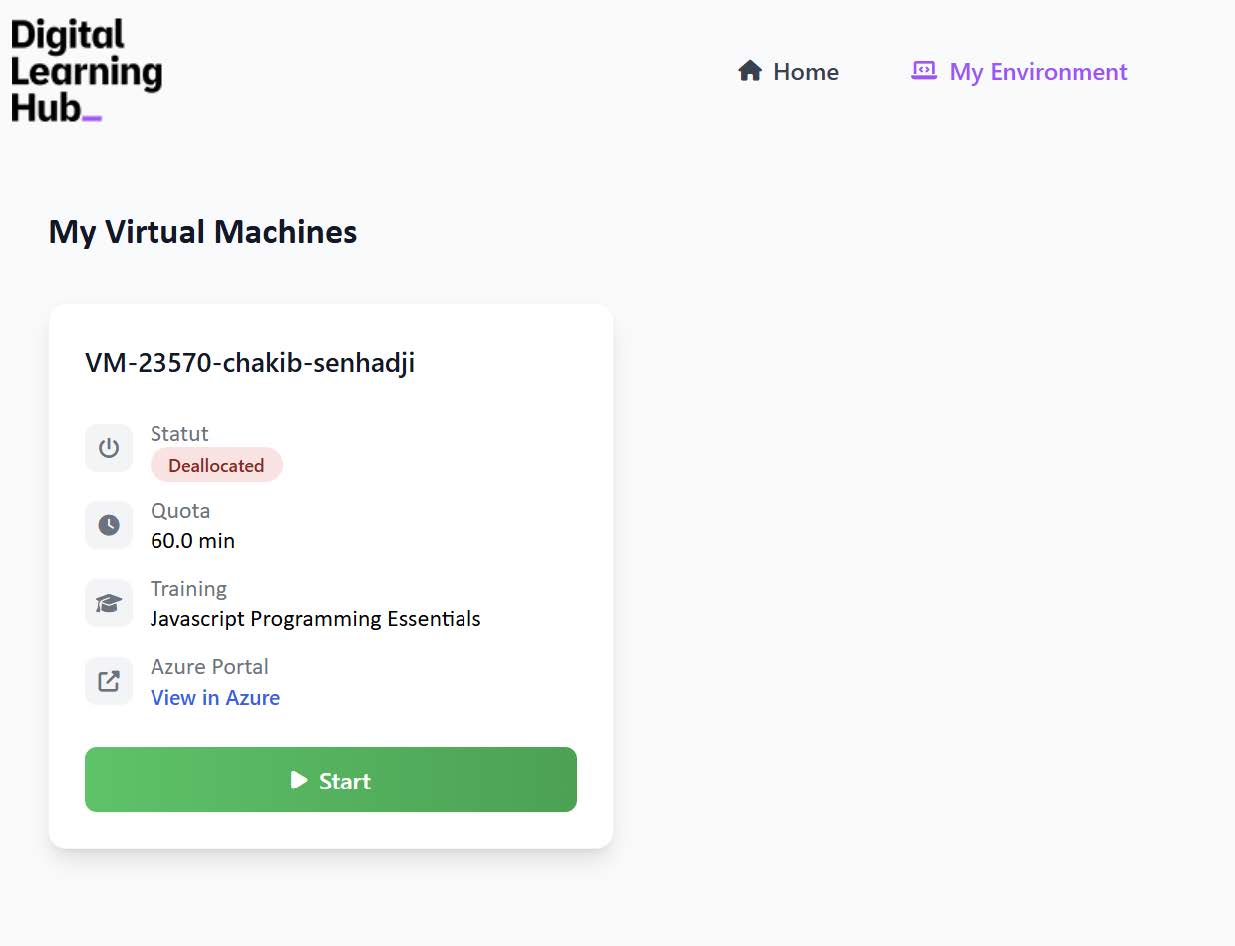
-
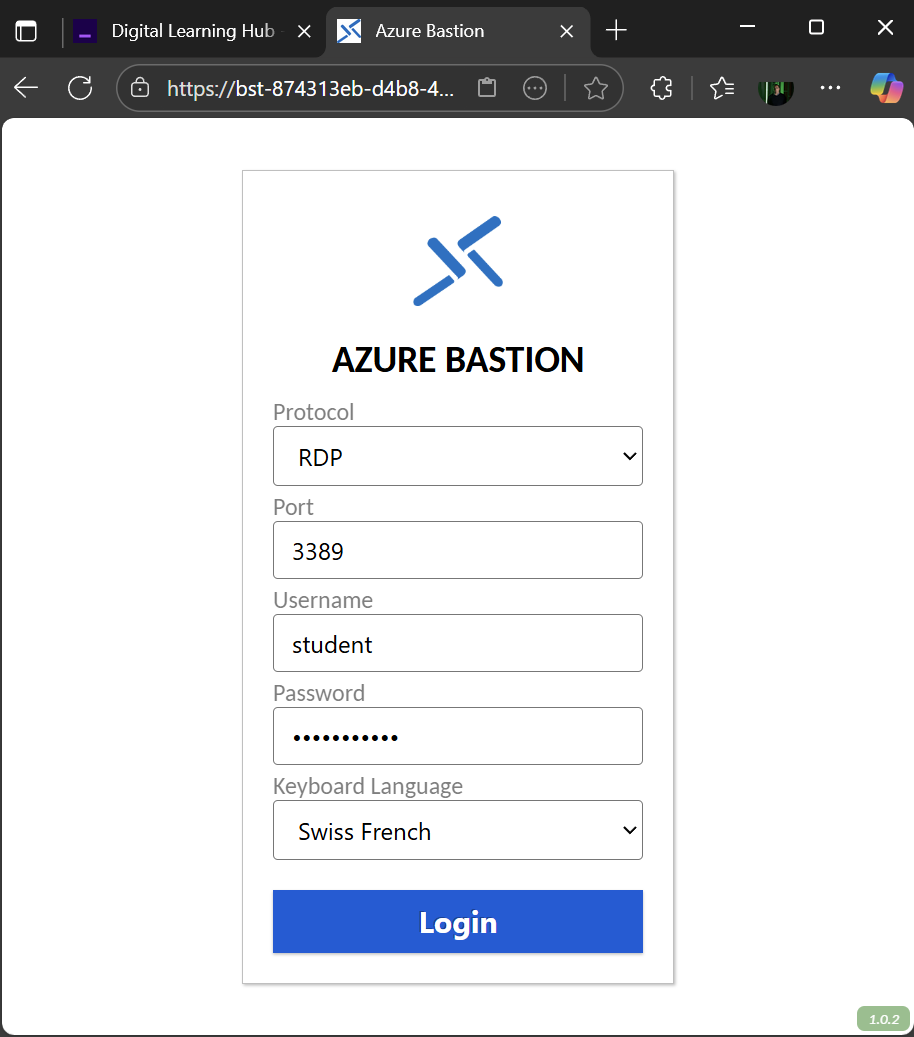
After clicking the link, a new tab will open in your browser, taking you to Bastion in the Azure Portal.
Enter the Student Credentials you received from DLH. Ask the trainer if you don't have them.
Choose the Swiss French keyboard layout to be compatible with the physical keyboards in the classroom.
Finally, click on the "Login" button to access your virtual machine.
Please note that your virtual machines are automatically powered on at the start of your training session and powered off 30 minutes after the session ends. Additionally, you have the option to start and stop your virtual machines independently, within a specified quota allocated for each training, outside of scheduled training times.
How to reset a password on Microsoft Office 365
-
Go to office.com or click on the “Sign in” button down below.
Sign in -
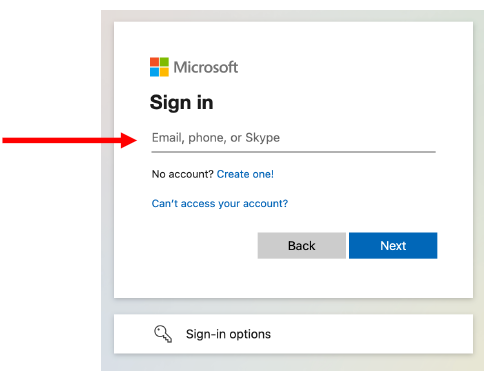
Enter your DLH Microsoft account which you should have received per mail from it@dlh.lu. It should be firstname.surname@trainer.dlh.lu for the trainers and firstname.surname@student.dlh.lu for the students.
-
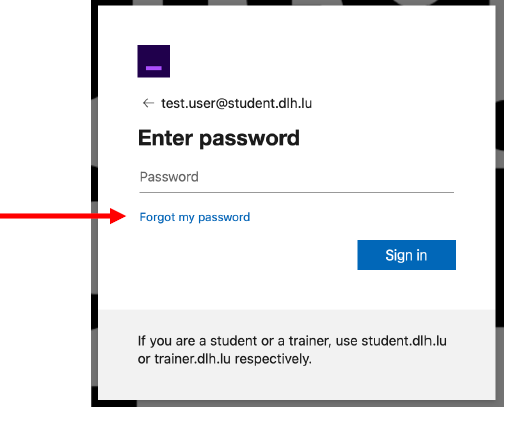
Next you will be asked for your password, and in the case you have forgotten it, click on “Forgot my password”.
-
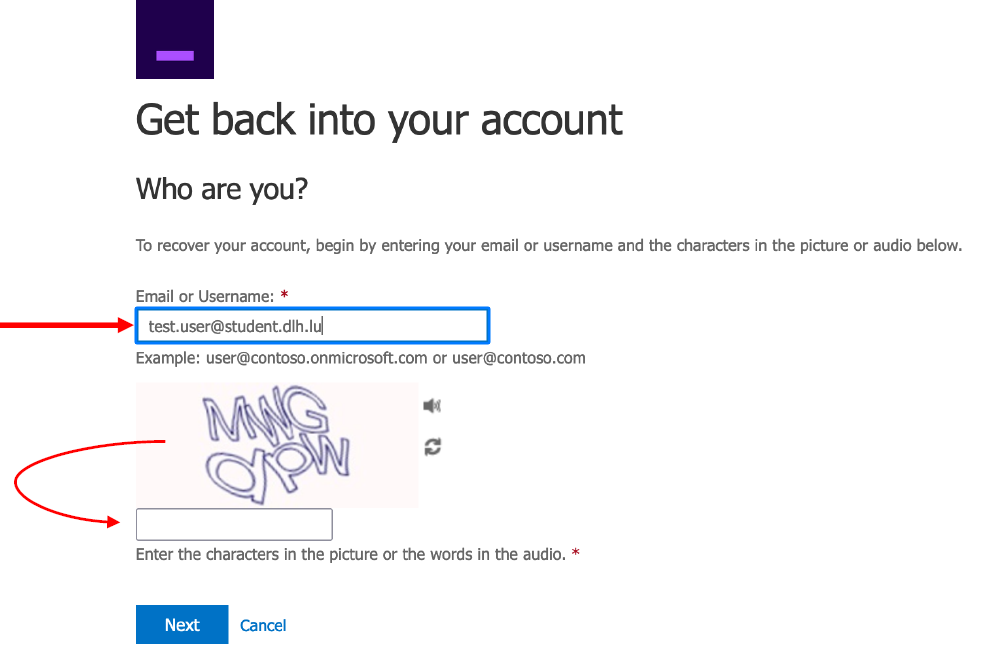
On the next screen, you must enter your DLH email (usually already provided) and the characters to prove you're not a bot. Then click “Next”.
-
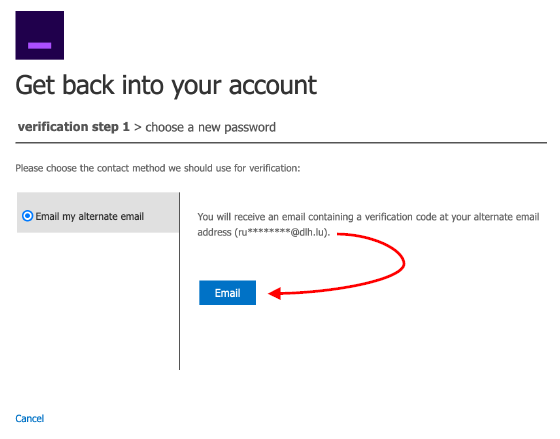
Finally, send a verification code to your private/professional email address to reset your password.
For trainers: The email address is the one you provided to the DLH team.
For students: The email address is the one you used to register on our website dlh.lu.
You will see part of the email address hidden by asterisks. Then click on “Email”.
-
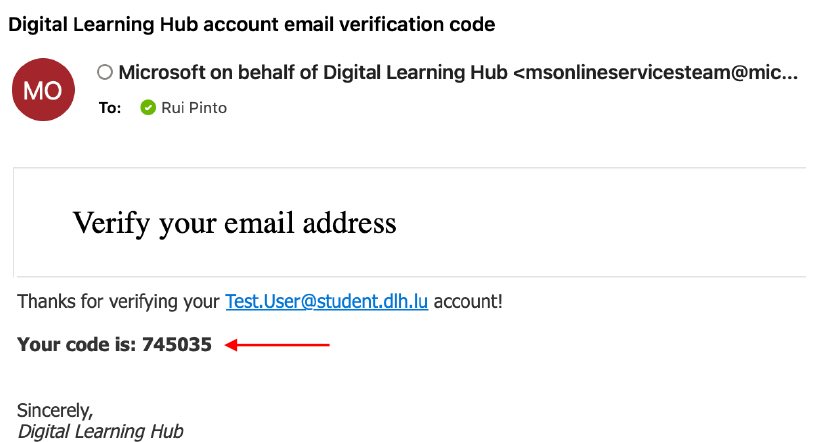
After clicking on “Email” you will receive the verification code. Here is an example of such an email:
-
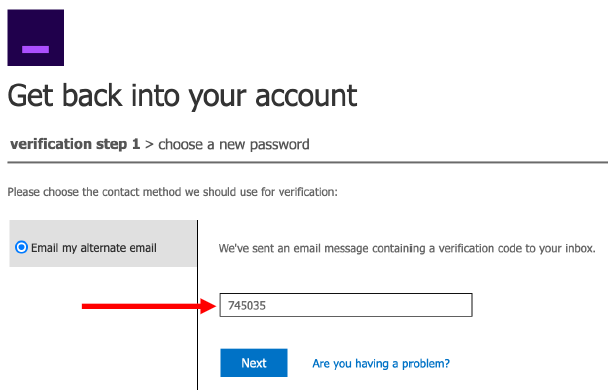
Enter the verification code:
The verification code must be entered as soon as possible, as it expires after a few minutes.
-
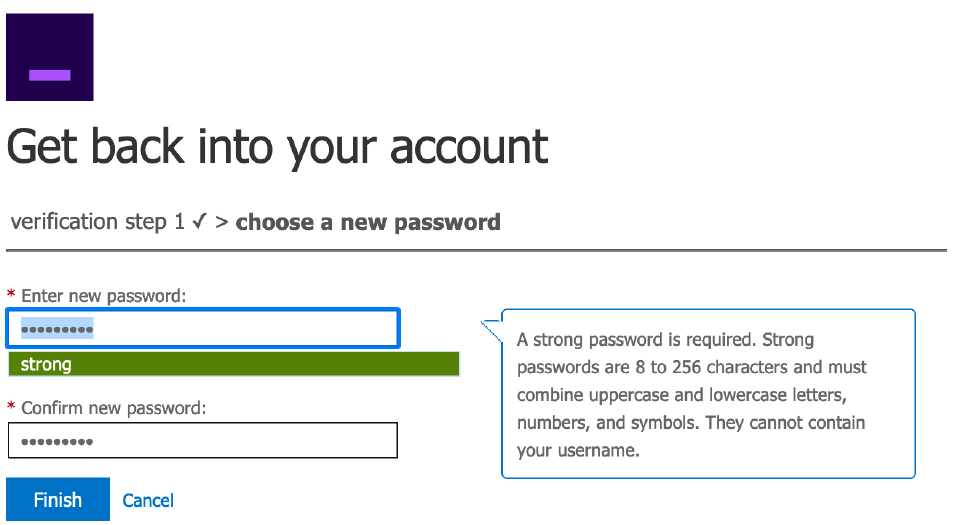
Finally, enter your new password and confirm it. The password must meet Microsoft’s security requirements.
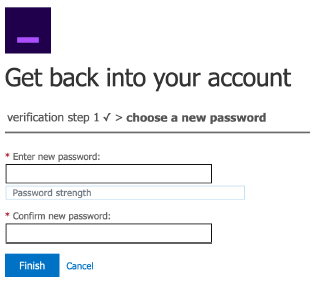
Once the requirements are met and the password is confirmed, click “Finish”.
-
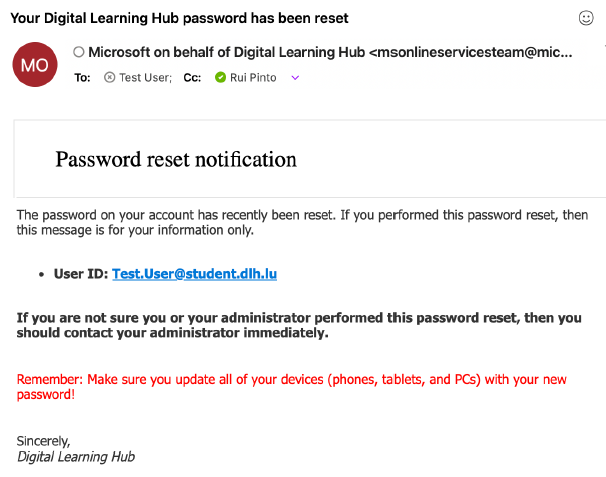
You will receive a confirmation that your password has been reset and can return to https://office.com/ to sign in.
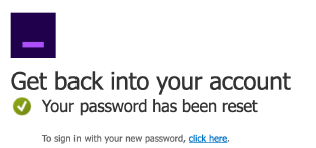
For security reasons, you will also receive an email that your password has been reset.